|
WAKEONLAN can be used to wake a computer in the local network by sending a special Wake on LAN packet, also known as a magic packet, to the target network adapter. To use this command, you must enter the MAC address of the target network adapter. Enter the MAC address without hyphens or colons.
Example:
00-00-00-00-00-00 must be entered as 000000000000.
Please note: Wake on LAN must be supported and enabled by the target computer, the network adapter, the network adapter driver and, if required, the BIOS or UEFI firmware. Depending on the system configuration, Wake on LAN may work from sleep or hibernation, but not necessarily after a complete shutdown.
Broadcast address
The default broadcast address 255.255.255.255 usually only works within the local network segment and is normally not forwarded across routers or subnets.
If the target computer is located in another subnet, the broadcast address of the target subnet or a suitable network configuration is required. Many routers block forwarded broadcast packets by default for security reasons.
Windows configuration
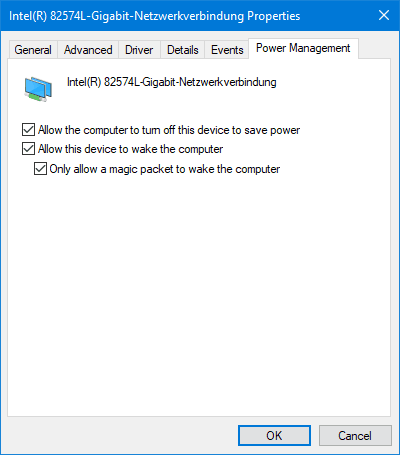
To use Wake on LAN, enable this feature for the network adapter in Windows Device Manager. Open the properties of the network adapter and check the Power Management and Advanced tabs. Depending on the network adapter and driver, enable options such as:
•Allow this device to wake the computer
•Only allow a magic packet to wake the computer
•Wake on Magic Packet
The exact option names may vary depending on the network adapter and driver.
Hardware configuration
Wake on LAN must be supported and enabled by the computer hardware. In many systems, the corresponding option can be found in the BIOS or UEFI settings. Depending on the mainboard, the option may be called "Wake on LAN", "Power On by PCI-E", "Power On by LAN", "Resume by LAN" or similar. The exact name depends on the BIOS or UEFI manufacturer. Very old network cards may require a separate Wake on LAN cable between the network card and the mainboard. This is normally not required on modern systems.
Please refer to the manuals of the mainboard, network adapter and computer manufacturer for the correct hardware configuration.
All mentioned trademarks and company names are subject to the Copyright of their respective owners.
|