|
Label and Description
Each Z-Cron task requires a label. The label should briefly describe what the task is used for. You can also enter a description. This is optional, but useful if you want to add notes, details, or a short explanation of the task.
Send to
Here you can specify who should be notified after the Z-Cron task has finished. If you enter an email address, Z-Cron sends an email after the task has ended. The task label is used as the email subject, and the description is used as the email text. Multiple email addresses can be separated by commas.
If you enter a local Windows recipient instead of an email address, Z-Cron display a local message. Possible recipients are, for example, "*" for all logged-on users, a Windows user name, or a session ID. If this field is left empty, no notification is sent.
Run Z-Cron command on schedule
The embedded commands as well as the programs Z-TapeBackup or Z-DBackup can easily be selected using the Tools button:
Run programs on schedule
Insert the complete path of the program or document you want to run or load into the field Program: or use the .. button for a selection menu.
Using the Parameter: field, you can provide one or more starting parameters to the program you want to call. Please note that you have use quotation marks (") for parameters containing space characters. Otherwise they will be seen as several single parameters by the program you call.
Directory for program start
Programs are started from their program directory. You can change the initial setting here.
Starting batchfiles on schedule
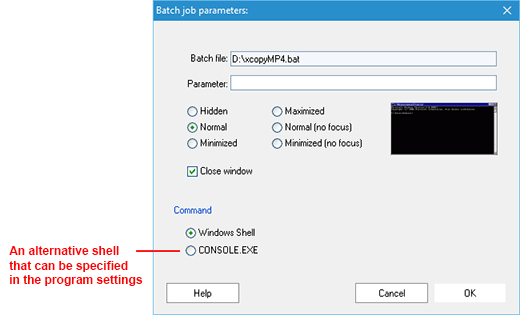
Batch files are normal textfiles that you can create and edit for example with the Windows editor "Notepad.exe". Batch processors like Command / Cmd read a batch file and execute the included commands one after another. To call a batch file use this syntax:
|
Syntax: Batchfile /W <0-4,6> /C<JN>
|
|
|
|
Option: /W (Window option)
|
|
|
|
0=Hide
|
3=Maximized
|
|
1=Normal
|
4=Normal
|
|
2=Minimized
|
6=Minimized
|
|
|
|
Option: /C
|
|
|
|
J=Close window
|
|
|
|
You can also use the Button Batch to set the parameters instead!
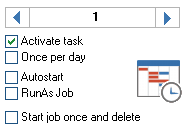
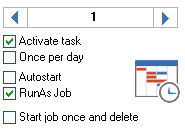
Activate task
By removing the check mark at Activate task you can temporarily prevent a defined task from being executed without deleting it. If Activate task is deactivated, the task won't be executed!
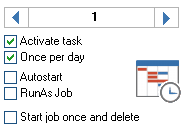
Once per day
Activates option once per day, the time planning is deactivated after the first execution of the job. This makes it possible to create several start times for single tasks.
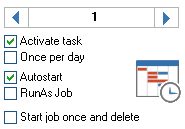
Autostart
If Autostart is activated, the task will be executed with every Start of Z-Cron, independently of the set starting time.
Run As Job
Run As setting allows Z-Cron to execute programs with other rights than the current Windows User Logon rights. The Username and Password you want to use for the task can be set separately for each Cronjob using the "Run As" tab.
|


.png)




.png)