|
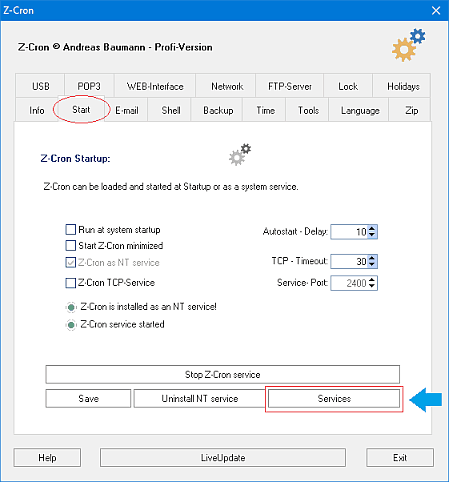
Run at system startup
If Z-Cron is installed on Windows, it can starts as a regular application using the system autostart function.
Z-Cron as Windows service
In Windows 11, 10 ,8 ,7 or Windows Server 2025,2022, 2016 and 2012, Z-Cron can be started as a system service. A service is a type of application that is run in the background and is comparable to a UNIX/Linux Daemon application. Services are special programs that provide functionality independent of logged-in users.
Z-Cron TCP service
If Z-Cron has been configured as a service, this option can be used to activate the Z-Cron TCP service. The change only takes effect after the Z-Cron service has been restarted. The TCP service enables communication with other Z-Cron services or with Z-DBackup in the local network. Communication takes place via port 2400. If a password has been set, only computers using the same password can exchange commands.
Autostart delay
Activates a global delay (2-20 seconds) for the autostart job option.
TCP-Timeout
Global timeout for TCP connections (in seconds). The default value is 30 seconds, which is sufficient in most cases. If, for example, you're performing an action with Z-Cron, that requests data from a server (e.g. GETCGI) the server could take longer to respond. In those cases you can increase the timeout here.
Configuring Z-Cron service
 You need administrative rights for configuring Z-Cron as a service! You need administrative rights for configuring Z-Cron as a service!
If Z-Cron is started as a service, it is by default running on the (invisible) user account "LocalSystem". This account has reduced rights, for example no access rights to network resources. Therefore it is possible that you get problems with access rights during execution. You can change this by running the Z-Cron service with administrative rights. Depending on your network environment either the local administrator account or the domain administrator account has to be selected, or at least a user with suitable rights!
If the presetting shall be changed or a data interchange should be disabled between service and desktop, these preferences can be set directly from Z-Cron.
Open the Windows service management from the program setup.
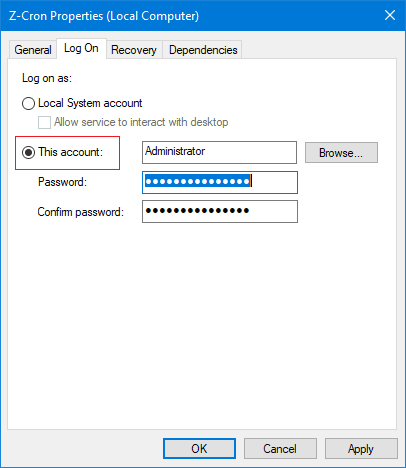
Find the service "Z-Cron" in the list of services, then right click the service and select "Properties".
In the dialog window "Z-Cron Properties" go to the tab "Log On" and activate the option "This account".
Enter username and password of the account the Z-Cron service should run under and confirm with OK.
Now right click the Z-Cron service again and select "Restart" from the context menu.
All mentioned trademarks and company names are subject to the Copyright of their respective owners.
|


.png)